How to Keep Your Team Aligned With a Simple Status Update Template (Free PDF and PPT)
Track project tasks, priorities, and deadlines with this free status update template. Download the PDF instantly or get the editable PPT after signing up.

Every project manager knows the feeling. You walk into a meeting, and everyone has a different understanding of where things stand.
Tasks slip through the cracks. Deadlines get missed. And the question "Who owns this?" echoes through the room far too often.
A clear status update template solves this. Not with complexity, but with clarity.
Why Status Updates Matter More Than You Think
Status updates are not about micromanagement. They are about alignment. When your team sees the same information at the same time, confusion disappears. Priorities become obvious. Accountability becomes natural.
The best status updates do three things: they show what needs attention, they track progress visually, and they make ownership crystal clear.
What This Template Includes
This template comes in two variations, each designed for a specific purpose.
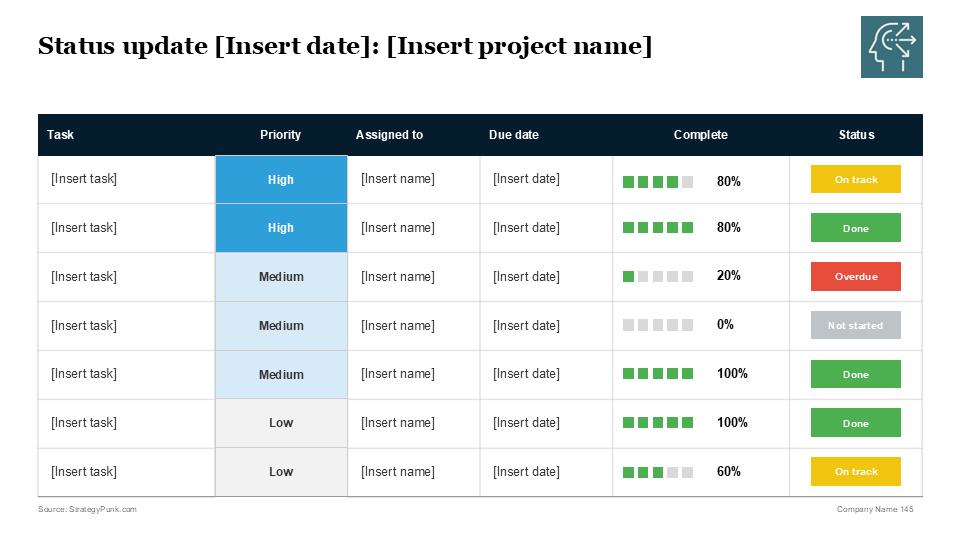
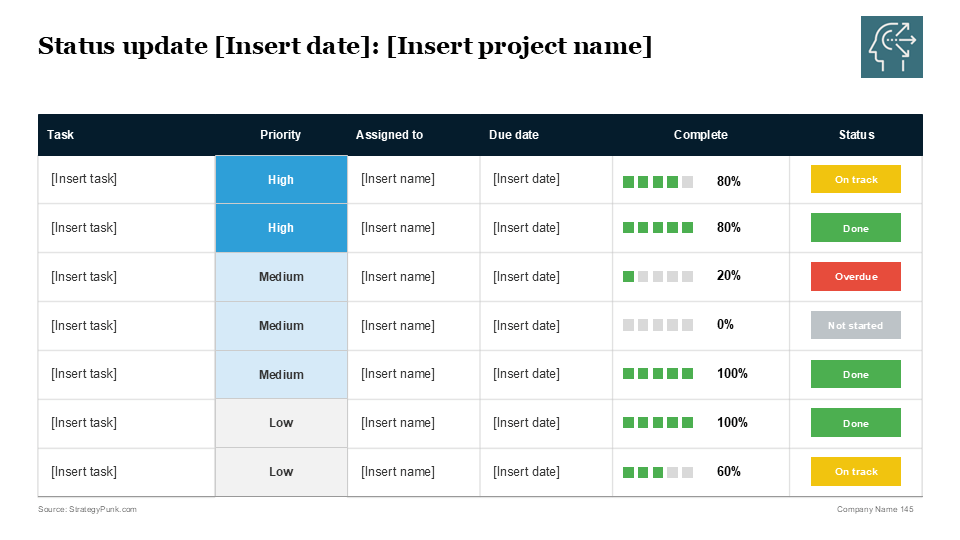
The first slide focuses on task-level detail. You get a clean table with columns for the task name, priority level, assignee, due date, completion percentage, and current status. The priority column uses color coding to distinguish between high, medium, and low importance. Green highlights completed work. Yellow shows tasks in progress. Red flags anything overdue or not yet started.
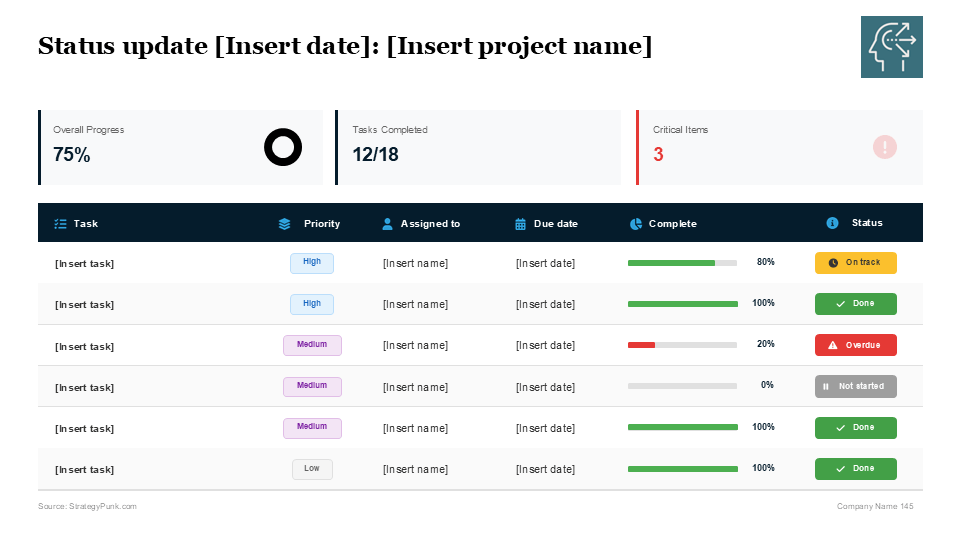
The second slide adds a dashboard layer on top. Three summary boxes sit above the task table: overall progress as a percentage, tasks completed as a fraction, and a count of critical items that need attention. This gives executives and stakeholders a quick snapshot without forcing them to read every line.
Both slides share the same structure and visual language. Use the first when you need granular detail. Use the second when you need to communicate status quickly to leadership.
How to Use This Template Effectively
Start by listing your tasks in order of priority. High-priority items go at the top. This ensures the most critical work catches attention first.
Assign clear owners to every task. Avoid assigning tasks to teams or groups. One person should be accountable for each item. This prevents the diffusion of responsibility that kills projects.
Update completion percentages honestly. A task that shows 80% complete should actually be 80% complete. Nothing erodes trust faster than inflated progress numbers that reset back to 50% the following week.
Use the status column to communicate trajectory, not just current state. "On track" means the task will meet its deadline. "Overdue" means action is needed now. "Not started" signals work that has not begun, which might be fine if the due date is far away or a red flag if time is running out.
Review and update your status slide at the same cadence as your team meetings. Weekly works for most projects. Daily updates make sense during critical phases. Monthly reviews work for longer initiatives with stable progress.
Customization Tips
Replace the placeholder text with your actual project name and current date. This seems obvious, but generic templates lose credibility when presented without proper context.
Adjust the task list length to match your project scope. Six to ten tasks per slide keeps things readable. If you have more, consider creating multiple slides or grouping related work.
Modify the priority levels if your organization uses different terminology. Some teams prefer "Critical, Important, Normal" over "High, Medium, Low." The color coding matters more than the specific words.
Add your company logo to replace the placeholder in the corner. Branded templates look more professional and signal that this is official communication.
When to Send Status Updates
Send them before meetings, not during. Give people time to read and process the information. This transforms status meetings from information download sessions into problem-solving discussions.
Send them to stakeholders even when they do not ask. Regular updates build trust and reduce the number of "Can you send me a quick update?" requests that interrupt your workflow.
Archive them somewhere accessible. Status updates become valuable records when you need to understand why decisions were made or when specific milestones were reached.
Download the Status Update Template
Get started with this status update template today.
Status Update Template PDF Version:
Download free, no login required.
PowerPoint Version: Download free after creating your account or logging in. The editable PPT file lets you customize colors, add your branding, and modify the layout to match your needs.
Both versions include the two slide variations shown above. Use them as starting points and adapt them to fit your workflow.
Clear communication drives project success. A good status update template makes that communication easier.